1.设置主题为Theme.AppCompat.Light.NoActionBar(淡色主题)
2.在layout中使用Toolbar
3..在Mainactivity获取toolbar实例
4.设置menu并在Mainactivity中使用
1
2
3
4
5
6
7
8
9
10
11
12
13
| <resources xmlns:tools="http://schemas.android.com/tools">
<!-- Base application theme. -->
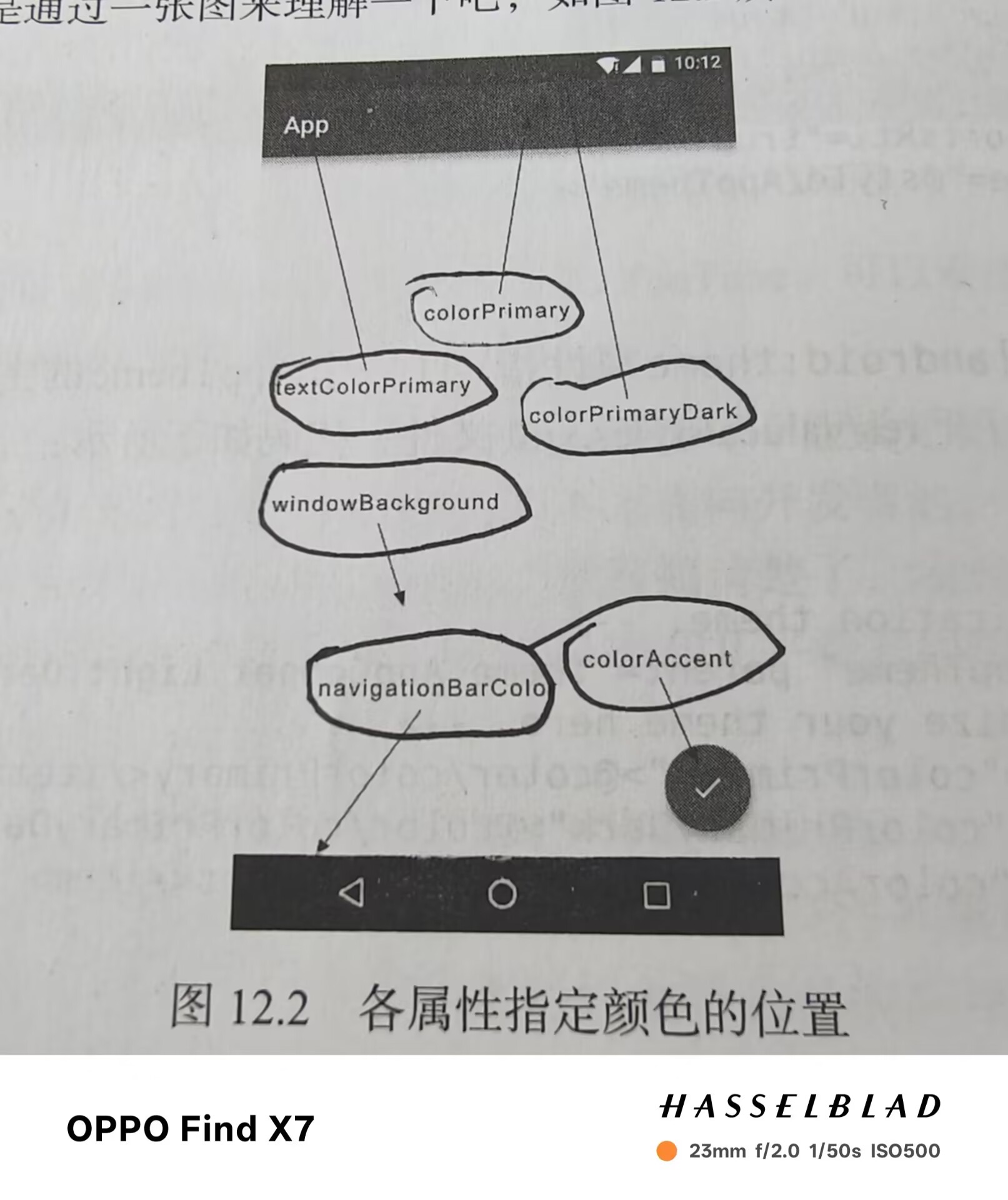
<style name="AppTheme" parent="Theme.AppCompat.Light.NoActionBar">
<!-- Customize your light theme here. -->
<item name="colorPrimary">@color/black</item>
<item name="colorPrimaryDark">@color/black</item>
<item name="colorAccent">@color/white</item>
<item name="android:textColorPrimary">@color/black</item>
<item name="android:windowBackground">@color/white</item>
<item name="android:navigationBarColor">@color/black</item>
</style>
</resources>
|
1
2
3
4
5
6
7
8
9
10
11
12
13
14
| <FrameLayout xmlns:android="http://schemas.android.com/apk/res/android"
xmlns:app="http://schemas.android.com/apk/res-auto"
android:layout_width="match_parent"
android:layout_height="match_parent">
<androidx.appcompat.widget.Toolbar
android:id="@+id/toolbar"
android:layout_width="match_parent"
android:layout_height="?attr/actionBarSize"
android:background="?attr/colorPrimary"
android:theme="@style/ThemeOverlay.AppCompat.Dark.ActionBar"
app:popupTheme="@style/ThemeOverlay.AppCompat.Light"/>
</FrameLayout>
|
1
2
3
4
5
6
7
8
9
10
11
12
13
14
15
16
17
18
| <menu xmlns:android="http://schemas.android.com/apk/res/android"
xmlns:app="http://schemas.android.com/apk/res-auto">
<item
android:id="@+id/backup"
android:icon="@drawable/ic_launcher_background"
android:title="Backup"
app:showAsAction="always"/>
<item
android:id="@+id/delete"
android:icon="@drawable/ic_launcher_background"
android:title="Delete"
app:showAsAction="ifRoom"/>
<item
android:id="@+id/settings"
android:icon="@drawable/ic_launcher_background"
android:title="Settings"
app:showAsAction="never"/>
</menu>
|
1
2
3
4
5
6
7
8
9
10
11
12
13
14
15
16
17
18
19
20
21
22
23
24
25
26
| public class MainActivity extends AppCompatActivity {
@Override
protected void onCreate(Bundle savedInstanceState) {
super.onCreate(savedInstanceState);
setContentView(R.layout.activity_main);
Toolbar toolbar = (Toolbar) findViewById(R.id.toolbar);
setSupportActionBar(toolbar);
}
public boolean onCreateOptionsMenu(Menu menu){
getMenuInflater().inflate(R.menu.toolbar,menu);
return true;
}
@Override
public boolean onOptionsItemSelected(@NonNull MenuItem item) {
if(item.getItemId()==R.id.backup){
Toast.makeText(this, "You clicked Backup", Toast.LENGTH_SHORT).show();
} else if (item.getItemId()==R.id.delete) {
Toast.makeText(this, "You clicked Delete", Toast.LENGTH_SHORT).show();
}else{
Toast.makeText(this, "You clicked Settings", Toast.LENGTH_SHORT).show();
}
return true;
}
}
|
滑动菜单
DrawerLayout
1.修改布局中代码,使用DrawerLayout布局
2.获取DrawerLayout和ActionBar的实例
3.利用ActionBar的方法让导航按钮显示
4.对按钮的点击事件进行处理
1
2
3
4
5
6
7
8
9
10
11
12
13
14
15
16
17
18
19
20
21
22
23
24
25
26
| <androidx.drawerlayout.widget.DrawerLayout
xmlns:android="http://schemas.android.com/apk/res/android"
xmlns:app="http://schemas.android.com/apk/res-auto"
android:id="@+id/drawer_layout"
android:layout_width="match_parent"
android:layout_height="match_parent">
<FrameLayout
android:layout_width="match_parent"
android:layout_height="match_parent">
<androidx.appcompat.widget.Toolbar
android:id="@+id/toolbar"
android:layout_width="match_parent"
android:layout_height="?attr/actionBarSize"
android:background="?attr/colorPrimary"
android:theme="@style/ThemeOverlay.AppCompat.Dark.ActionBar"
app:popupTheme="@style/ThemeOverlay.AppCompat.Light"/>
</FrameLayout>
<TextView
android:layout_width="match_parent"
android:layout_height="match_parent"
android:layout_gravity="start"
android:text="This is menu"
android:textSize="30sp"
android:background="#FFF"/>
</androidx.drawerlayout.widget.DrawerLayout>
|
1
2
3
4
5
6
7
| private DrawerLayout mDrawerLayout;
mDrawerLayout=(DrawerLayout) findViewById(R.id.drawer_layout);
ActionBar actionBar=getSupportActionBar();
if(actionBar!=null){
actionBar.setDisplayHomeAsUpEnabled(true);
actionBar.setHomeAsUpIndicator(R.drawable.ic_launcher_foreground);
}
|
1
2
3
| if(item.getItemId()==android.R.id.home){
mDrawerLayout.openDrawer(GravityCompat.START);
}
|
NavigationView
1.添加依赖库
2.准备menu和headerLayout
3.在activity_main.xml布局中使用NavigationView控件
4.创建点击事件
1
2
| implementation ("com.google.android.material:material:1.9.0")
implementation ("de.hdodenhof:circleimageview:3.1.0")
|
1
2
3
4
5
6
7
8
9
10
11
12
13
14
15
16
17
18
19
20
21
22
23
24
25
| <menu xmlns:android="http://schemas.android.com/apk/res/android">
<group android:checkableBehavior="single">
<item
android:id="@+id/nav_call"
android:icon="@drawable/ic_launcher_background"
android:title="Call"/>
<item
android:id="@+id/nav_friends"
android:icon="@drawable/ic_launcher_background"
android:title="Friends"/>
<item
android:id="@+id/nav_location"
android:icon="@drawable/ic_launcher_background"
android:title="Location"/>
<item
android:id="@+id/nav_mail"
android:icon="@drawable/ic_launcher_background"
android:title="Mail"/>
<item
android:id="@+id/nav_task"
android:icon="@drawable/ic_launcher_background"
android:title="Tasks"/>
</group>
</menu>
|
1
2
3
4
5
6
7
8
9
10
11
12
13
14
15
16
17
18
19
20
21
22
23
24
25
26
27
28
29
30
31
| <?xml version="1.0" encoding="utf-8"?>
<RelativeLayout xmlns:android="http://schemas.android.com/apk/res/android"
android:layout_width="match_parent"
android:layout_height="180dp"
android:padding="10dp"
android:background="?attr/colorPrimary">
<de.hdodenhof.circleimageview.CircleImageView
android:id="@+id/icon_image"
android:layout_width="70dp"
android:layout_height="70dp"
android:src="@drawable/ic_launcher_background"
android:layout_centerInParent="true"/>
<TextView
android:id="@+id/username"
android:layout_width="wrap_content"
android:layout_height="wrap_content"
android:layout_alignParentBottom="true"
android:text="1234567890@qq.com"
android:textColor="#FFF"
android:textSize="14sp"/>
<TextView
android:id="@+id/mail"
android:layout_width="wrap_content"
android:layout_height="wrap_content"
android:layout_above="@+id/username"
android:text="Klet"
android:textColor="#FFF"
android:textSize="14sp"/>
</RelativeLayout>
|
1
2
3
4
5
6
7
| <com.google.android.material.navigation.NavigationView
android:id="@+id/nav_view"
android:layout_height="match_parent"
android:layout_width="match_parent"
android:layout_gravity="start"
app:menu="@menu/nav_menu"
app:headerLayout="@layout/nav_header"/>
|
1
2
3
4
5
6
7
8
9
10
11
12
|
NavigationView navView=(NavigationView)findViewById(R.id.nav_view);
navView.setCheckedItem(R.id.nav_call);
navView.setNavigationItemSelectedListener(new NavigationView.OnNavigationItemSelectedListener() {
@Override
public boolean onNavigationItemSelected(@NonNull MenuItem item) {
mDrawerLayout.closeDrawers();
return true;
}
});
|
悬浮按钮和可交互显示
1.在布局中添加控件
2.设置点击事件
1
2
3
4
5
6
7
8
9
| <com.google.android.material.floatingactionbutton.FloatingActionButton
android:id="@+id/fab"
android:layout_height="wrap_content"
android:layout_width="wrap_content"
android:layout_gravity="bottom|end"
android:layout_margin="16dp"
android:src="@drawable/ic_done"
app:elevation="8dp"
/>
|
1
2
3
4
5
6
7
| FloatingActionButton fab=(FloatingActionButton) findViewById(R.id.fab);
fab.setOnClickListener(new View.OnClickListener() {
@Override
public void onClick(View view) {
Toast.makeText(MainActivity.this, "FAB clicked", Toast.LENGTH_SHORT).show();
}
});
|
Snackbar(可交互的Toast)
1.用make获取对象
2.setAction设置动作
3.用show将其显示
1
2
3
4
5
6
7
| Snackbar.make(view,"Data Delete",Snackbar.LENGTH_SHORT)
.setAction("UOdo", new View.OnClickListener() {
@Override
public void onClick(View view) {
Toast.makeText(MainActivity.this, "Data Restored", Toast.LENGTH_SHORT).show();
}
}).show();
|
CoordinatorLayout(加强版FrameLayout)
可以监听到所有子控件的各种事件,然后自动帮助我们做出最为合理的响应,就是加强版的FrameLayout
1
2
3
4
5
6
7
8
9
10
11
12
13
14
15
16
17
18
19
20
| <androidx.coordinatorlayout.widget.CoordinatorLayout
android:layout_width="match_parent"
android:layout_height="match_parent">
<androidx.appcompat.widget.Toolbar
android:id="@+id/toolbar"
android:layout_width="match_parent"
android:layout_height="?attr/actionBarSize"
android:background="?attr/colorPrimary"
android:theme="@style/ThemeOverlay.AppCompat.Dark.ActionBar"
app:popupTheme="@style/ThemeOverlay.AppCompat.Light"/>
<com.google.android.material.floatingactionbutton.FloatingActionButton
android:id="@+id/fab"
android:layout_height="wrap_content"
android:layout_width="wrap_content"
android:layout_gravity="bottom|end"
android:layout_margin="16dp"
android:src="@drawable/ic_done"
app:elevation="8dp"
/>
</androidx.coordinatorlayout.widget.CoordinatorLayout>
|
卡片式布局
CardView(是一个FrameLayout)
RecyclerView和CardView混合使用
1.添加依赖
2.在布局中添加RecyclerView并建立Fruit类,子项布局和适配器
3.应用recyclerView
1
2
3
| implementation ("androidx.cardview:cardview:1.0.0")
implementation ("androidx.recyclerview:recyclerview:1.3.2")
implementation ("com.github.bumptech.glide:glide:4.16.0")
|
1
2
3
4
5
6
7
8
9
10
11
12
13
14
15
16
17
18
19
20
21
22
23
24
25
26
27
| <androidx.cardview.widget.CardView
xmlns:android="http://schemas.android.com/apk/res/android"
xmlns:app="http://schemas.android.com/apk/res-auto"
android:layout_width="match_parent"
android:layout_height="wrap_content"
android:layout_margin="5dp"
app:cardCornerRadius="4dp">
<LinearLayout
android:orientation="vertical"
android:layout_width="match_parent"
android:layout_height="wrap_content">
<ImageView
android:id="@+id/fruit_image"
android:layout_width="match_parent"
android:layout_height="100dp"
android:scaleType="centerCrop"/>
<TextView
android:id="@+id/fruit_text"
android:layout_width="wrap_content"
android:layout_height="wrap_content"
android:layout_gravity="center_horizontal"
android:layout_margin="5dp"
android:textSize="16sp"/>
</LinearLayout>
</androidx.cardview.widget.CardView>
|
1
2
3
4
5
6
7
8
9
10
11
12
13
14
15
16
17
18
19
20
21
| public class Fruit {
private String name;
private int imageId;
public Fruit(String name, int imageId) {
this.name = name;
this.imageId = imageId;
}
public String getName() {
return name;
}
public int getImageId() {
return imageId;
}
}
|
1
2
3
4
5
6
7
8
9
10
11
12
13
14
15
16
17
18
19
20
21
22
23
24
25
26
27
28
29
30
31
32
33
34
35
36
37
38
39
40
41
| public class FruitAdapter extends RecyclerView.Adapter<FruitAdapter.ViewHolder> {
private Context mContext;
private List<Fruit>mFruitList;
static class ViewHolder extends RecyclerView.ViewHolder{
CardView cardView;
ImageView fruitImage;
TextView fruitName;
public ViewHolder(View view){
super(view);
cardView=(CardView) view;
fruitImage=(ImageView) view.findViewById(R.id.fruit_image);
fruitName=(TextView) view.findViewById(R.id.fruit_text);
}
}
public FruitAdapter(List<Fruit>fruitList){
mFruitList=fruitList;
}
@NonNull
@Override
public ViewHolder onCreateViewHolder(@NonNull ViewGroup parent, int viewType) {
if(mContext==null){
mContext=parent.getContext();
}
View view= LayoutInflater.from(mContext).inflate(R.layout.fruit_item,parent,false);
return new ViewHolder(view);
}
@Override
public void onBindViewHolder(@NonNull ViewHolder holder, int position) {
Fruit fruit=mFruitList.get(position);
holder.fruitName.setText(fruit.getName());
Glide.with(mContext).load(fruit.getImageId()).into(holder.fruitImage);
}
@Override
public int getItemCount() {
return mFruitList.size();
}
}
|
1
2
3
4
5
6
7
8
9
10
11
12
13
14
15
16
17
18
19
20
21
22
23
24
25
| private Fruit[] fruits={new Fruit("Apple",R.drawable.apple),new Fruit("Banana",R.drawable.banana)
,new Fruit("Orange",R.drawable.orange),new Fruit("Watermelon",R.drawable.watermelon)};
private List<Fruit>fruitList=new ArrayList<>();
private FruitAdapter adapter;
@Override
protected void onCreate(Bundle savedInstanceState) {
super.onCreate(savedInstanceState);
setContentView(R.layout.activity_main);
inits();
RecyclerView recyclerView=(RecyclerView) findViewById(R.id.recycler_view);
GridLayoutManager layoutManager=new GridLayoutManager(this,2);
recyclerView.setLayoutManager(layoutManager);
adapter=new FruitAdapter(fruitList);
recyclerView.setAdapter(adapter);
}
private void inits(){
fruitList.clear();
for(int i=0;i<50;i++){
Random random=new Random();
int index=random.nextInt(fruits.length);
fruitList.add(fruits[index]);
}
}
|
AppBarLayout
用来解决RecyclerView遮挡ToolBar问题
1.将ToolBar嵌入到AppBarLayout中
2.给RecyclerView添加一个布局行为
3.在ToolBar中添加app:layout_scrollFlags属性
1
2
3
4
5
6
7
8
9
10
11
12
13
14
15
16
17
18
19
20
21
22
23
24
25
26
27
28
29
30
31
32
33
34
35
36
37
38
39
40
41
42
43
44
45
46
47
48
49
| <androidx.drawerlayout.widget.DrawerLayout
xmlns:android="http://schemas.android.com/apk/res/android"
xmlns:app="http://schemas.android.com/apk/res-auto"
android:id="@+id/drawer_layout"
android:layout_width="match_parent"
android:layout_height="match_parent">
<androidx.coordinatorlayout.widget.CoordinatorLayout
android:layout_width="match_parent"
android:layout_height="match_parent">
<com.google.android.material.appbar.AppBarLayout
android:layout_width="match_parent"
android:layout_height="wrap_content">
<androidx.appcompat.widget.Toolbar
android:id="@+id/toolbar"
android:layout_width="match_parent"
android:layout_height="?attr/actionBarSize"
android:background="?attr/colorPrimary"
android:theme="@style/ThemeOverlay.AppCompat.Dark.ActionBar"
app:popupTheme="@style/ThemeOverlay.AppCompat.Light"
app:layout_scrollFlags="scroll|enterAlways|snap"/>
</com.google.android.material.appbar.AppBarLayout>
<androidx.recyclerview.widget.RecyclerView
android:id="@+id/recycler_view"
android:layout_width="match_parent"
android:layout_height="match_parent"
app:layout_behavior="@string/appbar_scrolling_view_behavior"/>
<com.google.android.material.floatingactionbutton.FloatingActionButton
android:id="@+id/fab"
android:layout_height="wrap_content"
android:layout_width="wrap_content"
android:layout_gravity="bottom|end"
android:layout_margin="16dp"
android:src="@drawable/ic_done"
app:elevation="8dp"
/>
</androidx.coordinatorlayout.widget.CoordinatorLayout>
<com.google.android.material.navigation.NavigationView
        android:id="@+id/nav_view"
         android:layout_height="match_parent"
        android:layout_width="match_parent"
        android:layout_gravity="start"
        app:menu="@menu/nav_menu"
        app:headerLayout="@layout/nav_header"/>
</androidx.drawerlayout.widget.DrawerLayout>
|
下拉刷新
利用SwipeRefreshLayout
1.将RecyclerView嵌入到SwipeRefreshLayout中,并将RecyclerView中的布局行为移到SwipeRefreshLayout中
2.在主活动中处理具体的刷新逻辑
1
2
3
4
5
6
7
8
9
10
11
| <androidx.swiperefreshlayout.widget.SwipeRefreshLayout
android:id="@+id/swipe_refresh"
android:layout_width="match_parent"
android:layout_height="match_parent"
app:layout_behavior="@string/appbar_scrolling_view_behavior"
>
<androidx.recyclerview.widget.RecyclerView
android:id="@+id/recycler_view"
android:layout_width="match_parent"
android:layout_height="match_parent" />
</androidx.swiperefreshlayout.widget.SwipeRefreshLayout>
|
1
2
3
4
5
6
7
8
9
10
11
12
13
14
15
16
17
18
19
20
21
22
23
24
25
26
27
28
29
30
31
32
33
34
35
36
37
38
39
40
41
42
43
| private SwipeRefreshLayout swipeRefreshLayout;
@Override
protected void onCreate(Bundle savedInstanceState) {
super.onCreate(savedInstanceState);
setContentView(R.layout.activity_main);
swipeRefreshLayout=(SwipeRefreshLayout) findViewById(R.id.swipe_refresh);
swipeRefreshLayout.setColorSchemeResources(R.color.black);
swipeRefreshLayout.setOnRefreshListener(new SwipeRefreshLayout.OnRefreshListener() {
@Override
public void onRefresh() {
refreshFruits();
}
});
}
private void refreshFruits() {
new Thread(new Runnable() {
@Override
public void run() {
try{
Thread.sleep(2000);
}catch(InterruptedException e){
e.printStackTrace();
}
runOnUiThread(new Runnable() {
@Override
public void run() {
inits();
adapter.notifyDataSetChanged();
swipeRefreshLayout.setRefreshing(false);
}
});
}
}).start();
}
|
可折叠式标题栏
CollapsingToolbarLayout不能独立存在,他只能作为AppBarLayout的直接子布局使用,AppBarLayout又必须是CoordinatorLayout的子布局
1.使用CoordinatorLayout作为最外层布局,里面嵌套一个AppBarLayout,再嵌套一个CollapsingToolbarLayout
2.在CollapsingToolbarLayout中添加一个ImageView和Toolbar(这个高级标题栏由图片和普通标题栏构成)
3.在最外层布局中使用NestedScrollView(和AppBarLayout同级)
4.NestedScrollView内部只允许一个直接子布局,故先嵌套一个LinearLayout
5.在其中嵌入卡片式布局
6.可以再添加一个FloatingActionButton
7.接着在FruitActivity中编写功能逻辑
8.为RecyclerView设置点击事件
1
2
3
4
5
6
7
8
9
10
11
12
13
14
15
16
17
18
19
20
21
22
23
24
25
26
27
28
29
30
31
32
33
34
35
36
37
38
39
40
41
42
43
44
45
46
47
48
49
50
51
52
53
54
55
56
57
58
59
60
61
62
| <androidx.coordinatorlayout.widget.CoordinatorLayout xmlns:android="http://schemas.android.com/apk/res/android"
xmlns:app="http://schemas.android.com/apk/res-auto"
xmlns:tools="http://schemas.android.com/tools"
android:layout_width="match_parent"
android:layout_height="match_parent"
tools:context=".FruitActivity">
<com.google.android.material.appbar.AppBarLayout
android:id="@+id/appBar"
android:layout_width="match_parent"
android:layout_height="250dp">
<com.google.android.material.appbar.CollapsingToolbarLayout
android:id="@+id/collapsing_toolbar"
android:layout_width="match_parent"
android:layout_height="match_parent"
android:theme="@style/ThemeOverlay.AppCompat.Dark.ActionBar"
app:contentScrim="?attr/colorPrimary"
app:layout_scrollFlags="scroll|exitUntilCollapsed">
<ImageView
android:id="@+id/fruit_image_view"
android:layout_width="match_parent"
android:layout_height="match_parent"
android:scaleType="centerCrop"
app:layout_collapseMode="parallax"/>
<androidx.appcompat.widget.Toolbar
android:id="@+id/toolbar"
android:layout_width="match_parent"
android:layout_height="?attr/actionBarSize"
app:layout_collapseMode="pin"/>
</com.google.android.material.appbar.CollapsingToolbarLayout>
</com.google.android.material.appbar.AppBarLayout>
<androidx.core.widget.NestedScrollView
android:layout_width="match_parent"
android:layout_height="match_parent"
app:layout_behavior="@string/appbar_scrolling_view_behavior">
<LinearLayout
android:orientation="vertical"
android:layout_width="match_parent"
android:layout_height="wrap_content">
<androidx.cardview.widget.CardView
android:layout_width="match_parent"
android:layout_height="wrap_content"
android:layout_marginBottom="15dp"
android:layout_marginLeft="15dp"
android:layout_marginRight="15dp"
android:layout_marginTop="35dp"
app:cardCornerRadius="4dp">
<TextView
android:id="@+id/fruit_content_text"
android:layout_width="wrap_content"
android:layout_height="wrap_content"
android:layout_margin="10dp"/>
</androidx.cardview.widget.CardView>
</LinearLayout>
</androidx.core.widget.NestedScrollView>
<com.google.android.material.floatingactionbutton.FloatingActionButton
android:layout_width="wrap_content"
android:layout_height="wrap_content"
android:layout_margin="16sp"
android:src="@drawable/ic_done"
app:layout_anchor="@id/appBar"
app:layout_anchorGravity="bottom|end"/>
</androidx.coordinatorlayout.widget.CoordinatorLayout>
|
1
2
3
4
5
6
7
8
9
10
11
12
13
14
15
16
17
18
19
20
21
22
23
24
25
26
27
28
29
30
31
32
33
34
35
36
37
38
39
40
41
42
43
44
45
46
47
48
49
50
| public class FruitActivity extends AppCompatActivity {
public static final String FRUIT_NAME="fruit_name";
public static final String FRUIT_IMAGE_ID="fruit_image_id";
@Override
protected void onCreate(Bundle savedInstanceState) {
super.onCreate(savedInstanceState);
setContentView(R.layout.activity_fruit);
Intent intent=getIntent();
String fruitName=intent.getStringExtra(FRUIT_NAME);
int fruitImageId=intent.getIntExtra(FRUIT_IMAGE_ID,0);
Toolbar toolbar=(Toolbar) findViewById(R.id.toolbar);
CollapsingToolbarLayout collapsingToolbarLayout=(CollapsingToolbarLayout) findViewById(R.id.collapsing_toolbar);
ImageView fruitImageView=(ImageView) findViewById(R.id.fruit_image_view);
TextView fruitContentText=(TextView) findViewById(R.id.fruit_content_text);
setSupportActionBar(toolbar);
ActionBar actionBar=getSupportActionBar();
if(actionBar!=null){
actionBar.setDisplayHomeAsUpEnabled(true);
}
collapsingToolbarLayout.setTitle(fruitName);
Glide.with(this).load(fruitImageId).into(fruitImageView);
String fruitContent=generateFruitContent(fruitName);
fruitContentText.setText(fruitContent);
}
private String generateFruitContent(String fruitName) {
StringBuilder fruitContent=new StringBuilder();
for(int i=0;i<500;i++){
fruitContent.append(fruitName);
}
return fruitContent.toString();
}
@Override
public boolean onOptionsItemSelected(@NonNull MenuItem item) {
if(item.getItemId()==android.R.id.home){
finish();
return true;
}
return super.onOptionsItemSelected(item);
}
}
|
1
2
3
4
5
6
7
8
9
10
11
12
13
14
15
16
17
18
19
20
21
| @NonNull
@Override
public ViewHolder onCreateViewHolder(@NonNull ViewGroup parent, int viewType) {
if(mContext==null){
mContext=parent.getContext();
}
View view= LayoutInflater.from(mContext).inflate(R.layout.fruit_item,parent,false);
final ViewHolder holder=new ViewHolder(view);
holder.cardView.setOnClickListener(new View.OnClickListener() {
@Override
public void onClick(View view) {
int position=holder.getAdapterPosition();
Fruit fruit=mFruitList.get(position);
Intent intent=new Intent(mContext, FruitActivity.class);
intent.putExtra(FruitActivity.FRUIT_NAME,fruit.getName());
intent.putExtra(FruitActivity.FRUIT_IMAGE_ID,fruit.getImageId());
mContext.startActivity(intent);
}
});
return holder;
}
|
充分利用系统状态栏空间
让背景图和系统状态栏融合
1.将ImageView及其所有父布局使用android:fitsSystemWindows=”true”
2.使用android:statusBarColor属性将主题状态栏颜色设为透明(该属性是API21之后才有的,故需要新建一个values-v21目录并对其进行编写)
3.对values中的theme文件进行修改
4.在Manifest.xml中对活动主题进行修改
1
2
3
4
5
6
7
8
9
10
11
12
13
14
15
16
17
18
19
20
21
22
23
24
25
26
27
| <androidx.coordinatorlayout.widget.CoordinatorLayout xmlns:android="http://schemas.android.com/apk/res/android"
xmlns:app="http://schemas.android.com/apk/res-auto"
xmlns:tools="http://schemas.android.com/tools"
android:layout_width="match_parent"
android:layout_height="match_parent"
tools:context=".FruitActivity"
android:fitsSystemWindows="true">
<com.google.android.material.appbar.AppBarLayout
android:id="@+id/appBar"
android:layout_width="match_parent"
android:layout_height="250dp"
android:fitsSystemWindows="true">
<com.google.android.material.appbar.CollapsingToolbarLayout
android:id="@+id/collapsing_toolbar"
android:layout_width="match_parent"
android:layout_height="match_parent"
android:theme="@style/ThemeOverlay.AppCompat.Dark.ActionBar"
app:contentScrim="?attr/colorPrimary"
app:layout_scrollFlags="scroll|exitUntilCollapsed"
android:fitsSystemWindows="true">
<ImageView
android:id="@+id/fruit_image_view"
android:layout_width="match_parent"
android:layout_height="match_parent"
android:scaleType="centerCrop"
app:layout_collapseMode="parallax"
android:fitsSystemWindows="true"/>
|
1
2
3
4
5
| <resources>
<style name="FruitActivityTheme" parent="AppTheme">
<item name="android:statusBarColor">@android:color/transparent</item>
</style>
</resources>
|
1
2
| <style name="FruitActivityTheme" parent="AppTheme">
</style>
|
1
2
3
4
| <activity
android:name=".FruitActivity"
android:theme="@style/FruitActivityTheme"
android:exported="false" />
|