碎片是什么
碎片是一种可以嵌入在活动当中的UI片段,它能让程序更加合理充分地利用大屏幕的空间,因而在平板上应用广泛。
碎片的使用方式
碎片的简单用法
新建一个左侧碎片布局left_fragment.xml:
1
2
3
4
5
6
7
8
9
10
11
| <LinearLayout xmlns:android="http://schemas.android.com/apk/res/android"
android:orientation="vertical"
android:layout_width="match_parent"
android:layout_height="match_parent">
<Button
android:id="@+id/button"
android:layout_width="wrap_content"
android:layout_height="wrap_content"
android:layout_gravity="center_horizontal"
android:text="Button"/>
</LinearLayout>
|
新建一个右侧碎片布局right_fragment.xml:
1
2
3
4
5
6
7
8
9
10
11
12
| <LinearLayout xmlns:android="http://schemas.android.com/apk/res/android"
android:orientation="vertical"
android:background="#00ff00"
android:layout_width="match_parent"
android:layout_height="match_parent">
<TextView
android:layout_width="wrap_content"
android:layout_height="wrap_content"
android:layout_gravity="center_horizontal"
android:textSize="20sp"
android:text="This is right fragment"/>
</LinearLayout>
|
新建一个LeftFragment类继承自Fragment(通过LayoutInflater的inflate()方法将定义的碎片布局动态加载进去):
1
2
3
4
5
6
7
8
9
| public class LeftFragment extends Fragment {
@Nullable
@Override
public View onCreateView(@NonNull LayoutInflater inflater, @Nullable ViewGroup container, @Nullable Bundle savedInstanceState) {
View view=inflater.inflate(R.layout.left_fragment,container,false);
return view;
}
}
|
同样的方法新建一个RightFragment类:
1
2
3
4
5
6
7
8
| public class RightFragment extends Fragment {
@Override
public View onCreateView(@NonNull LayoutInflater inflater, @Nullable ViewGroup container, @Nullable Bundle savedInstanceState) {
View view=inflater.inflate(R.layout.right_fragment,container,false);
return view;
}
}
|
接下来修改activity_main布局中的代码:
1
2
3
4
5
6
7
8
9
10
11
12
13
14
15
16
17
18
| <LinearLayout xmlns:android="http://schemas.android.com/apk/res/android"
android:orientation="horizontal"
android:layout_width="match_parent"
android:layout_height="match_parent"
>
<fragment
android:id="@+id/left_fragment"
android:name="com.example.fragmenttest.LeftFragment"
android:layout_width="0dp"
android:layout_height="match_parent"
android:layout_weight="1"/>
<fragment
android:id="@+id/right_fragment"
android:name="com.example.fragmenttest.RightFragment"
android:layout_width="0dp"
android:layout_height="match_parent"
android:layout_weight="1"/>
</LinearLayout>
|
动态添加碎片
(1)创建待添加的碎片实例(another_right_fragment.xml)
创建布局以及加载实例
1
2
3
4
5
6
7
8
9
10
11
12
| <LinearLayout xmlns:android="http://schemas.android.com/apk/res/android"
android:orientation="vertical"
android:background="#ffff00"
android:layout_width="match_parent"
android:layout_height="match_parent">
<TextView
android:layout_width="wrap_content"
android:layout_height="wrap_content"
android:layout_gravity="center_horizontal"
android:textSize="20sp"
android:text="This is another right fragment"/>
</LinearLayout>
|
1
2
3
4
5
6
7
8
9
| public class AnotherRightFragment extends Fragment {
@Nullable
@Override
public View onCreateView(@NonNull LayoutInflater inflater, @Nullable ViewGroup container, @Nullable Bundle savedInstanceState) {
View view=inflater.inflate(R.layout.another_right_fragment,container,false);
return view;
}
}
|
修改主活动布局文件:
1
2
3
4
5
6
7
8
9
10
11
12
13
14
15
16
17
18
| <LinearLayout xmlns:android="http://schemas.android.com/apk/res/android"
android:orientation="horizontal"
android:layout_width="match_parent"
android:layout_height="match_parent"
>
<fragment
android:id="@+id/left_fragment"
android:name="com.example.fragmenttest.LeftFragment"
android:layout_width="0dp"
android:layout_height="match_parent"
android:layout_weight="1"/>
<FrameLayout
android:id="@+id/right_layout"
android:layout_width="0dp"
android:layout_height="match_parent"
android:layout_weight="1">
</FrameLayout>
</LinearLayout>
|
(2)获取FragmentManager,在活动中可以直接通过调用getSupportFragmentManager()方法得到
(3)开启一个事务,通过调用beginTransaction()方法开启
(4)向容器内添加或替换碎片,一般使用replace()方法实现,需要传入容器的id和待添加的碎片实例
(5)提交事务,调用commit()方法来完成
1
2
3
4
5
6
7
8
9
10
11
12
13
14
15
16
17
18
19
20
21
22
23
24
25
| public class MainActivity extends AppCompatActivity {
@Override
protected void onCreate(Bundle savedInstanceState) {
super.onCreate(savedInstanceState);
setContentView(R.layout.activity_main);
Button button=(Button) findViewById(R.id.button);
button.setOnClickListener(new View.OnClickListener() {
@Override
public void onClick(View view) {
if(view.getId()==R.id.button){
replaceFragment(new AnotherRightFragment());
}
}
});
replaceFragment(new RightFragment());
}
private void replaceFragment(Fragment fragement){
FragmentManager fragmentManager=getSupportFragmentManager();
FragmentTransaction transaction=fragmentManager.beginTransaction();
transaction.replace(R.id.right_layout,fragement);
transaction.commit();
}
}
|
在碎片中模拟返回栈
利用addToBackStack()方法可以将一个事务添加到返回栈中
1
2
3
4
5
6
7
| private void replaceFragment(Fragment fragement){
FragmentManager fragmentManager=getSupportFragmentManager();
FragmentTransaction transaction=fragmentManager.beginTransaction();
transaction.replace(R.id.right_layout,fragement);
transaction.addToBackStack(null);
transaction.commit();
}
|
碎片与活动之间进行通信
调用FragmentManager的findFragmentById()方法在活动中得到相应碎片的实例,然后就能轻松调用碎片里的方法
1
| RightFragment rightFragment=(RightFragment) getFragmentManager().findFragmentById(R.id.right_fragment);
|
通过getActivity可以在碎片中调用活动中的方法
1
| ManinActivity activity=(ManinActivity) getActivity();
|
碎片的生命周期
碎片的状态
(1)运行状态:
当一个碎片是可见的,并且它所关联的活动正处于运行状态时,该碎片也处于运行状态
(2)暂停状态:
当一个活动进入暂停状态时(由于另一个未占满屏幕的活动被添加到了栈顶),与它相关联的可见碎片就会进入到暂停状态。
(3)停止状态:
当一个活动进入到停止状态时,与它相关联的碎片就会进入到停止状态,或者通过调用FragmentTransaction的remove(),replace()方法将碎片从活动中移除,但如果在事务提交之前使用addToBackStack()方法,这时的碎片也会进入到停止状态。总的来说,进入到停止状态的碎片对用户来说完全不可见,有可能被系统回收。
(4)销毁状态:
碎片总是依附于活动而存在,因此当活动被销毁时,与它相关联的碎片就会进入到销毁状态。或者通过调用FragmentTransaction的remove(),replace()方法将碎片从活动中移除,但如果在事务提交之前没有使用addToBackStack()方法,这时碎片也会进入到销毁状态。
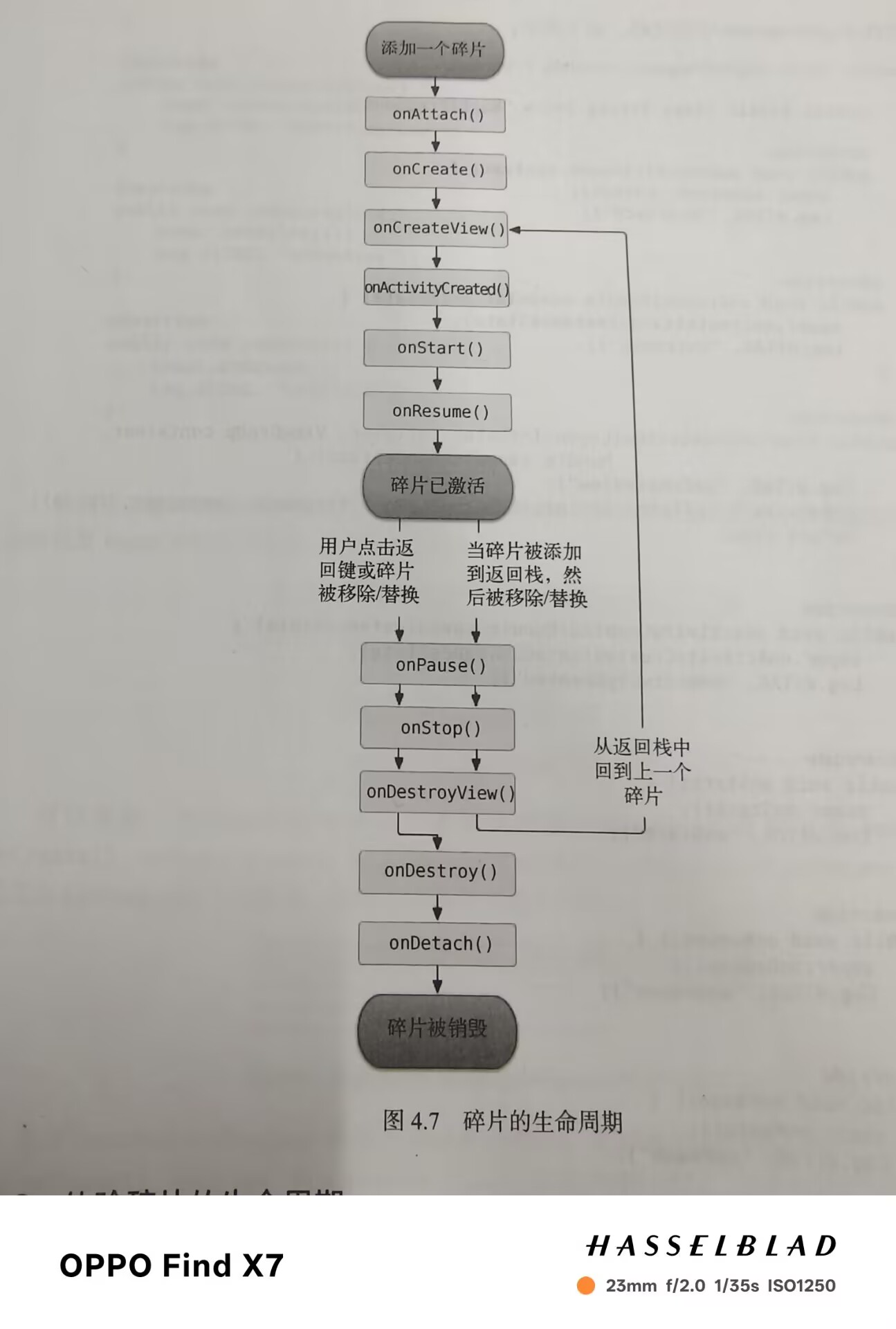
碎片的回调方法
onAttach().当碎片和活动建立起关联的时候调用
onCreateView().为碎片加载布局时调用
onActivityCreated().确保与碎片相关联的活动一定已经创建完毕时使用
onDestroyView().当与碎片相关联的视图被移除的时候调用
onDetach().当碎片和活动解除关联时调用
碎片的完整生命周期示意图:
体验碎片的生命周期
1
2
3
4
5
6
7
8
9
10
11
12
13
14
15
16
17
18
19
20
21
22
23
24
25
26
27
28
29
30
31
32
33
34
35
36
37
38
39
40
41
42
43
44
45
46
47
48
49
50
51
52
53
54
55
56
57
58
59
60
61
62
63
64
65
66
67
68
69
70
| public class RightFragment extends Fragment {
public static final String TAG="RightFragment";
@Override
public void onAttach(@NonNull Context context) {
super.onAttach(context);
Log.d(TAG, "onAttach");
}
@Override
public void onCreate(@Nullable Bundle savedInstanceState) {
super.onCreate(savedInstanceState);
Log.d(TAG, "onCreate");
}
@Nullable
@Override
public View onCreateView(@NonNull LayoutInflater inflater, @Nullable ViewGroup container, @Nullable Bundle savedInstanceState) {
Log.d(TAG, "onCreateView");
View view=inflater.inflate(R.layout.right_fragment,container,false);
return view;
}
@Override
public void onActivityCreated(@Nullable Bundle savedInstanceState) {
super.onActivityCreated(savedInstanceState);
Log.d(TAG, "onActivityCreated");
}
@Override
public void onStart() {
super.onStart();
Log.d(TAG, "onStart");
}
@Override
public void onResume() {
super.onResume();
Log.d(TAG, "onResume");
}
@Override
public void onPause() {
super.onPause();
Log.d(TAG, "onPause");
}
@Override
public void onStop() {
super.onStop();
Log.d(TAG, "onStop");
}
@Override
public void onDestroyView() {
super.onDestroyView();
Log.d(TAG, "onDestroyView");
}
@Override
public void onDestroy() {
super.onDestroy();
Log.d(TAG, "onDestroy");
}
@Override
public void onDetach() {
super.onDetach();
Log.d(TAG, "onDetach");
}
}
|
加载动态布局的技巧
使用限定符
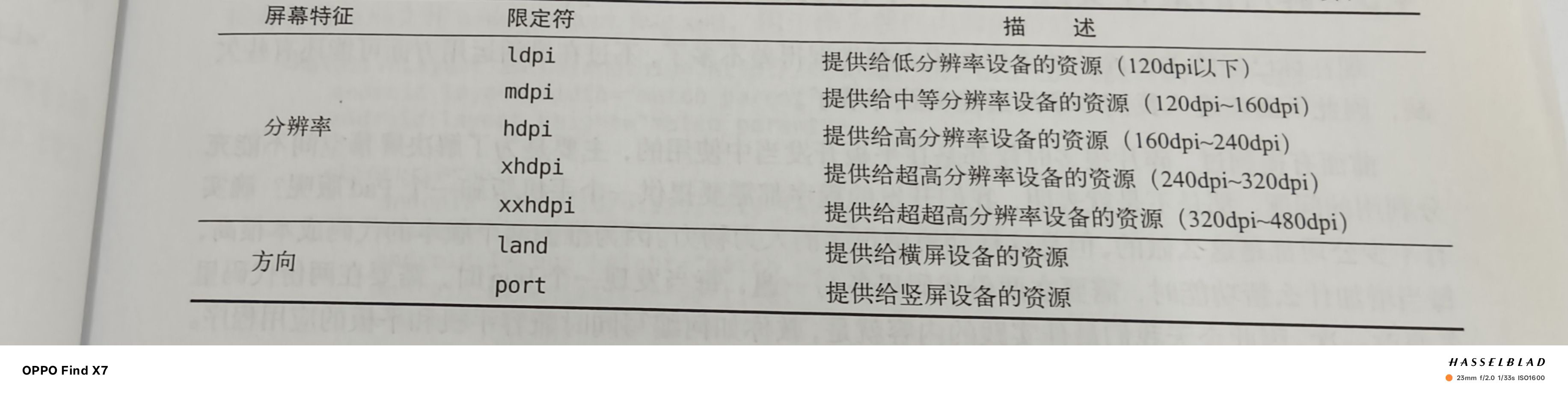
新建一个layout-large文件夹并在里面添加activity_main布局,layout中布局是单页模式,layout-large中布局是双页模式。其中large便是限定符,那些屏幕大的会自动识别并使用layout-large布局,屏幕小的则使用layout布局
常见限定符如下图所示

使用最小宽度限定符
想更加灵活地为不同设备加载布局,这时就可以用到最小宽度限定符,这允许我们对屏幕宽度指定一个最小值,以这个值为临界,比这个大的加载一个布局,比这个小的加载另一个布局。
例子:
在res下新建layout-sw600dp文件夹,宽度大于600dp的加载layout-sw600dp上的布局,宽度小于600dp的加载layout上的布局