常用控件
TextView
1
2
3
4
5
6
7
8
9
| <TextView
android:id="@+id/textView"
android:layout_width="match_parent"
android:layout_height="wrap_content"
android:gravity="center"
android:textColor="@color/red"
android:textSize="24sp"
android:text="This is TextView"
/>
|
1
2
3
4
5
| <Button
android:id="@+id/button"
android:layout_width="match_parent"
android:layout_height="wrap_content"
android:text="Button"/>
|
点击事件:
(1)
1
2
3
| myBinding.button.setOnClickListener {
}
|
(2)接口法
1
2
3
4
5
6
7
8
9
10
11
12
| class MainActivity : AppCompatActivity(),View.OnClickListener {
override fun onCreate(savedInstanceState: Bundle?) {
......
}
override fun onClick(v: View?) {
when(v?.id){
R.id.button->{
}
}
}
}
|
EditText
1
2
3
4
5
6
7
8
| <EditText
android:id="@+id/editText"
android:layout_width="match_parent"
android:layout_height="wrap_content"
android:textSize="26dp"
android:hint="Type something here"
android:maxLines="2"
/>
|
ImageView
1
2
3
4
5
| <ImageView
android:id="@+id/imageView"
android:layout_width="wrap_content"
android:layout_height="wrap_content"
android:src="@drawable/ic_launcher_background"/>
|
动态变化ImageView中图片
1
2
3
| myBinding.button.setOnClickListener {
myBinding.imageView.setImageResource(R.drawable.b)
}
|
ProgressBar
1
2
3
4
5
6
| <ProgressBar
android:id="@+id/progressBar"
android:layout_width="match_parent"
android:layout_height="wrap_content"
style="?android:attr/progressBarStyleHorizontal"
android:max="100"/>
|
AlertDialog
1
2
3
4
5
6
7
8
9
10
11
12
| AlertDialog.Builder(this).apply {
setTitle("This is Dialog")
setMessage("Something important")
setCancelable(false)
setPositiveButton("OK"){
dialog,which->
}
setNegativeButton("Cancel"){
dialog,which->
}
show()
}
|
布局
LinearLayout
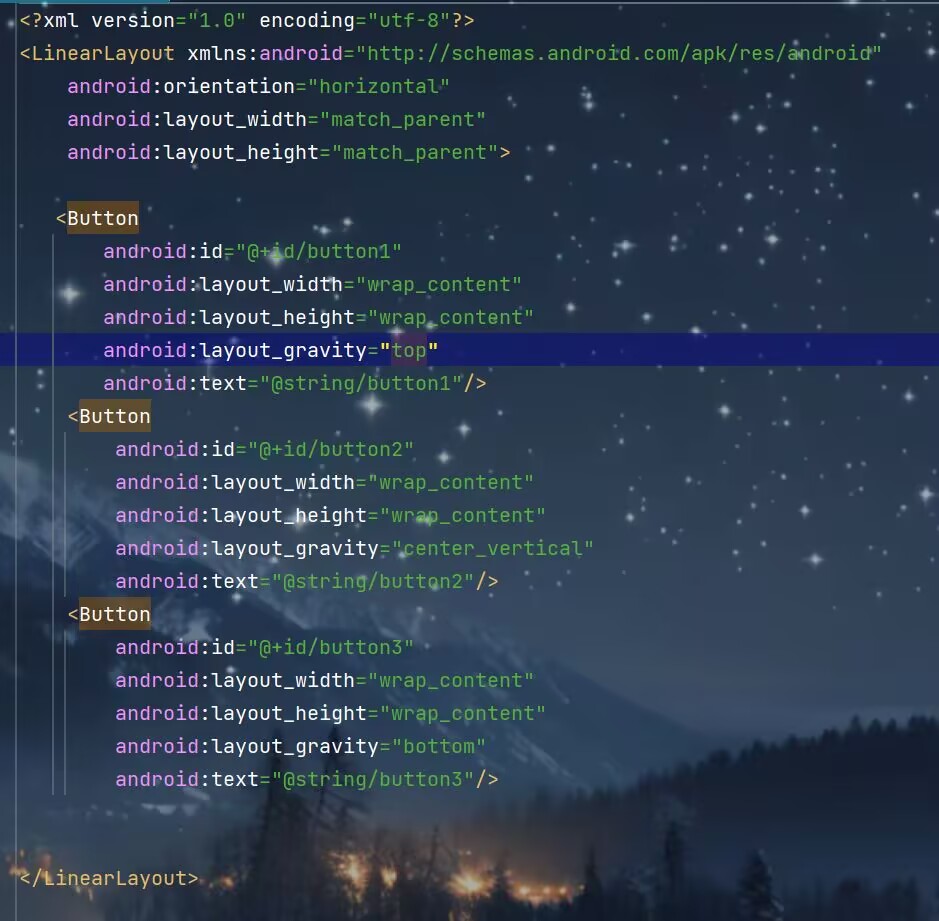
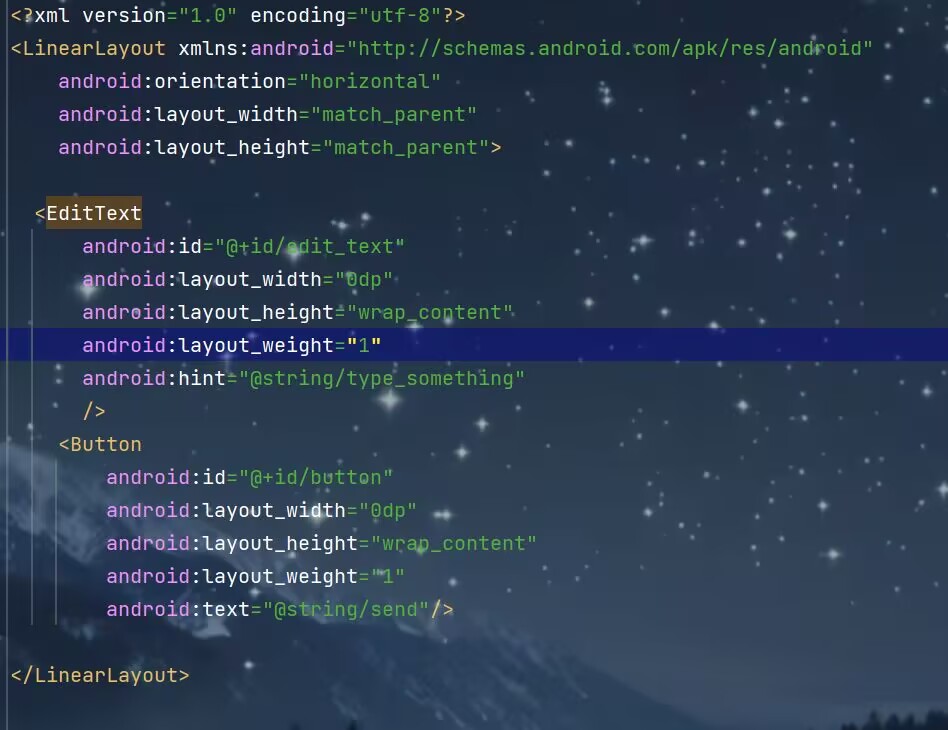
android:layout_weight这个属性允许我们使用比例的方式来指定控件的大小。使用这个时要把layout_width的值设为“0dp”
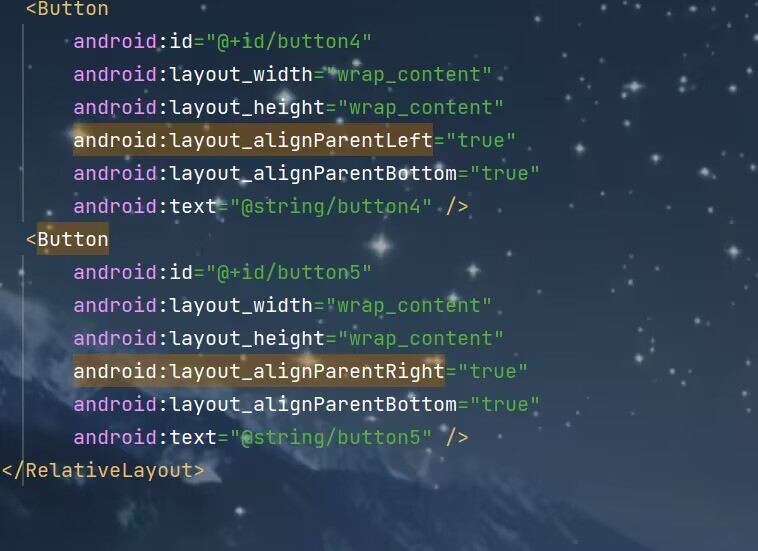
RelativeLayout
相对父布局
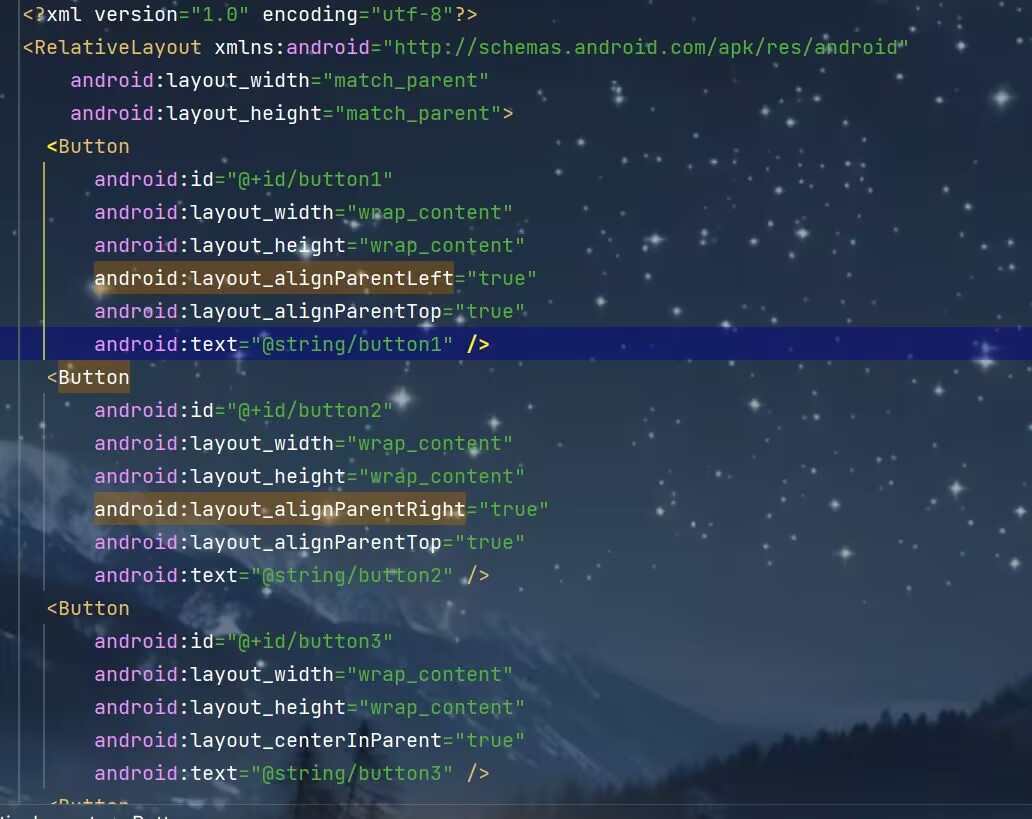
相对其他控件
**注:**引用控件放在前面
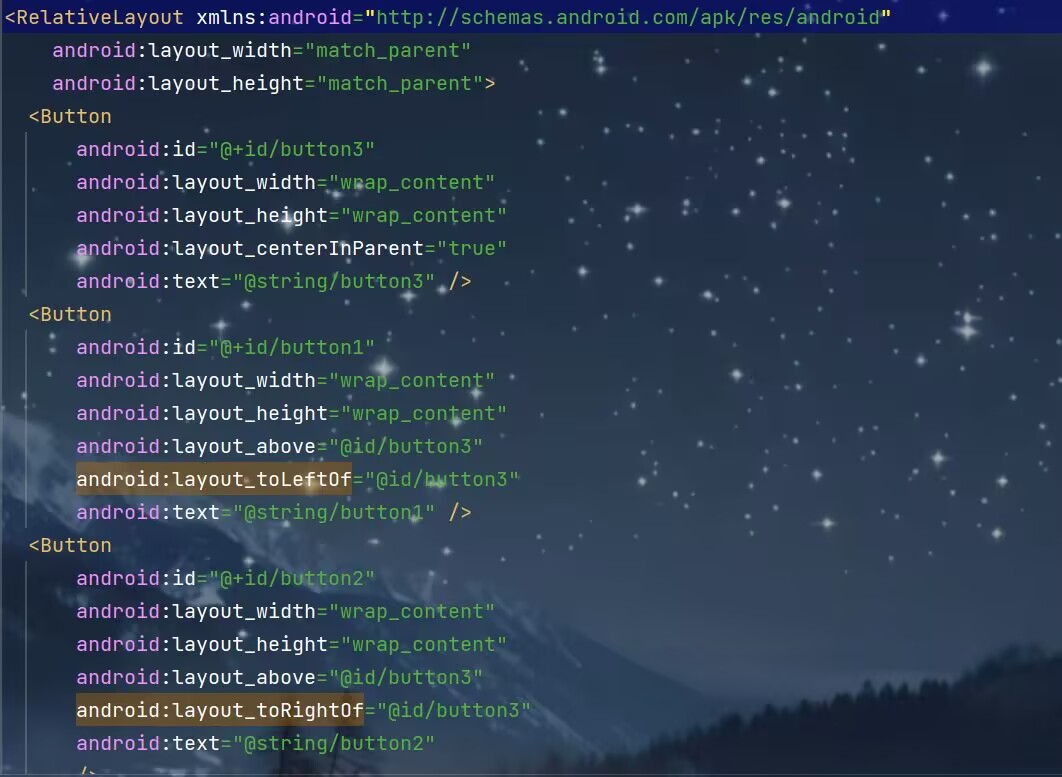
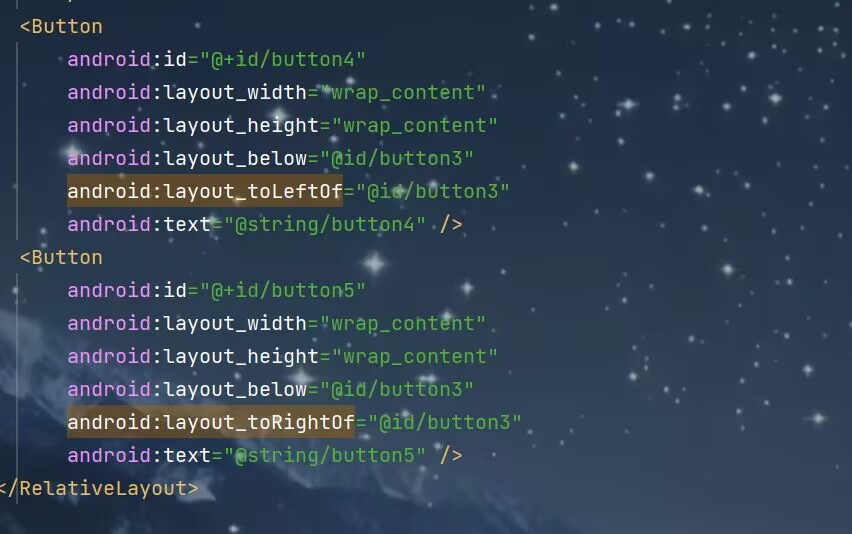
其他定位属性:
android:layout_alignLeft表示让一个控件的左边缘同另一个控件左边缘对齐
android:layout_alignRight表示让一个控件的右边缘同另一个控件右边缘对齐
android:layout_alignTop
android:layout_alignBottom
FrameLayout
FrameLayout又叫帧布局,应用场景较少,所有控件都会默认摆在布局左上角,也可以使用android:layout_gravity进行对齐操作,此方法应用场景过少,不做过多赘述
自定义控件
引入布局
1.创建一个子项布局
2.在相应活动布局中引用该布局
1
2
3
4
5
6
7
8
9
10
11
12
13
14
15
16
17
18
19
20
21
22
23
24
25
26
27
28
29
30
31
32
33
34
35
36
37
| <?xml version="1.0" encoding="utf-8"?>
<LinearLayout xmlns:android="http://schemas.android.com/apk/res/android"
android:orientation="horizontal"
android:layout_width="match_parent"
android:layout_height="wrap_content"
android:background="@drawable/title_bg">
<Button
android:id="@+id/titleBack"
android:layout_width="wrap_content"
android:layout_height="wrap_content"
android:text="Back"
android:layout_gravity="center"
android:layout_margin="5dp"
android:textColor="#fff"
android:background="@drawable/back_bg"/>
<TextView
android:id="@+id/titleText"
android:layout_width="0dp"
android:layout_height="wrap_content"
android:layout_weight="1"
android:text="Title Text"
android:gravity="center"
android:layout_gravity="center"
android:textColor="@color/black"
android:textSize="24sp"
/>
<Button
android:id="@+id/titleEdit"
android:layout_width="wrap_content"
android:layout_height="wrap_content"
android:text="Edit"
android:layout_gravity="center"
android:layout_margin="5dp"
android:textColor="#fff"
android:background="@drawable/edit_bg"/>
</LinearLayout>
|
1
| <include layout="@layout/title"/>
|
因为建立的是标题栏需要将系统自带的隐藏
1
| supportActionBar?.hind()
|
创建自定义控件
1.新建一个自定义类继承LinearLayout作为控件
2.在布局文件中添加这个控件
3.在自定义类中添加点击事件
1
2
3
4
5
6
7
8
9
10
11
12
13
14
15
| class TitleLayout(context: Context,attrs:AttributeSet):LinearLayout(context,attrs) {
init {
LayoutInflater.from(context).inflate(R.layout.title,this)
val titleBack=findViewById<Button>(R.id.titleBack)
val titleEdit=findViewById<Button>(R.id.titleEdit)
titleBack.setOnClickListener {
val activity =context as Activity
activity.finish()
}
titleEdit.setOnClickListener {
Toast.makeText(context,"You clicked edit button",Toast.LENGTH_SHORT).show()
}
}
}
|
1
2
3
4
| <com.example.uicustomviews.TitleLayout
android:layout_width="match_parent"
android:layout_height="wrap_content"
/>
|
ListView
1.在布局中添加该控件
2.制作一个适配器并定义一个类作为适配器类型
3.定义一个子项布局
4.将适配器和listview建立联系
5.定义其点击事件
1
2
3
4
5
6
7
8
9
10
| <?xml version="1.0" encoding="utf-8"?>
<LinearLayout xmlns:android="http://schemas.android.com/apk/res/android"
android:layout_width="match_parent"
android:layout_height="match_parent"
>
<ListView
android:id="@+id/listView"
android:layout_width="match_parent"
android:layout_height="match_parent"/>
</LinearLayout>
|
1
2
|
class Fruit(val name:String,val imageId:Int)
|
1
2
3
4
5
6
7
8
9
10
11
12
13
14
15
16
17
18
19
20
21
22
23
24
25
26
27
28
29
30
31
32
33
34
| class FruitAdapter(activity: Activity,val resourceId:Int,data:List<Fruit>):ArrayAdapter<Fruit>(activity,resourceId,data) {
inner class ViewHolder(val fruitImage:ImageView,val fruitName:TextView)
override fun getView(position: Int, convertView: View?, parent: ViewGroup): View {
val view:View
val viewHolder:ViewHolder
if(convertView!=null){
view=convertView
viewHolder=view.tag as ViewHolder
}
else{
view =LayoutInflater.from(context).inflate(resourceId,parent,false)
val fruitImage:ImageView=view.findViewById(R.id.fruit_image)
val fruitName:TextView=view.findViewById(R.id.fruitName)
viewHolder=ViewHolder(fruitImage,fruitName)
view.tag=viewHolder
}
val fruit=getItem(position)
if(fruit!=null){
viewHolder.fruitImage.setImageResource(fruit.imageId)
viewHolder.fruitName.text=fruit.name
}
return view
}
}
|
1
2
3
4
5
6
7
8
9
10
11
12
13
14
15
16
17
| <?xml version="1.0" encoding="utf-8"?>
<LinearLayout xmlns:android="http://schemas.android.com/apk/res/android"
android:layout_width="match_parent"
android:layout_height="60dp">
<ImageView
android:id="@+id/fruit_image"
android:layout_width="40dp"
android:layout_height="40dp"
android:layout_gravity="center_vertical"
android:layout_marginLeft="10dp"/>
<TextView
android:id="@+id/fruitName"
android:layout_width="wrap_content"
android:layout_height="wrap_content"
android:layout_gravity="center_vertical"
android:layout_marginLeft="10dp"/>
</LinearLayout>
|
1
2
3
4
5
| private val fruitList=ArrayList<Fruit>()
val adapter=FruitAdapter(this,R.layout.fruit_item,fruitList)
binding.listView.adapter=adapter
|
1
2
3
4
5
|
binding.listView.setOnItemClickListener { _, _, position, _ ->
val fruit=fruitList[position]
Toast.makeText(this,fruit.name,Toast.LENGTH_SHORT).show()
}
|
RecyclerView
1.添加依赖库
2.添加控件
3.准备一个适配器并定义一个适配器类型
4.定义一个子项布局
5.将适配器和RecyclerView建立联系并设置其布局形式
6.设置点击事件(在适配器的**onCreateViewHolder()**方法中设置)
1
| implementation ("androidx.recyclerview:recyclerview:1.3.2")
|
1
2
3
4
5
6
7
8
9
| <?xml version="1.0" encoding="utf-8"?>
<LinearLayout xmlns:android="http://schemas.android.com/apk/res/android"
android:layout_width="match_parent"
android:layout_height="match_parent">
<androidx.recyclerview.widget.RecyclerView
android:id="@+id/recyclerView"
android:layout_width="match_parent"
android:layout_height="match_parent"/>
</LinearLayout>
|
1
2
|
class Fruit(val name:String,val imageId:Int)
|
1
2
3
4
5
6
7
8
9
10
11
12
13
14
15
16
17
18
19
20
21
22
23
24
25
26
27
28
29
30
31
32
33
34
35
36
37
38
39
40
41
| class FruitAdapter(val fruitList: List<Fruit>):RecyclerView.Adapter<FruitAdapter.ViewHolder>() {
inner class ViewHolder(view: View):RecyclerView.ViewHolder(view){
val fruitImage:ImageView=view.findViewById(R.id.fruit_image)
val fruitName:TextView=view.findViewById(R.id.fruitName)
}
override fun onCreateViewHolder(parent: ViewGroup, viewType: Int): ViewHolder {
val view=LayoutInflater.from(parent.context).inflate(R.layout.fruit_item,parent,false)
val viewHolder=ViewHolder(view)
viewHolder.itemView.setOnClickListener {
val position=viewHolder.adapterPosition
val fruit=fruitList[position]
Toast.makeText(parent.context,"you clivked view ${fruit.name}",Toast.LENGTH_SHORT).show()
}
viewHolder.fruitImage.setOnClickListener {
val position=viewHolder.adapterPosition
val fruit=fruitList[position]
Toast.makeText(parent.context,"you clivked image ${fruit.name}",Toast.LENGTH_SHORT).show()
}
return viewHolder
}
@SuppressLint("SuspiciousIndentation")
override fun onBindViewHolder(holder: ViewHolder, position: Int) {
val fruit =fruitList[position]
holder.fruitImage.setImageResource(fruit.imageId)
holder.fruitName.text=fruit.name
}
override fun getItemCount()=fruitList.size
}
|
1
2
3
4
5
6
7
8
9
10
11
12
13
14
15
16
17
| <?xml version="1.0" encoding="utf-8"?>
<LinearLayout xmlns:android="http://schemas.android.com/apk/res/android"
android:layout_width="match_parent"
android:layout_height="60dp">
<ImageView
android:id="@+id/fruit_image"
android:layout_width="40dp"
android:layout_height="40dp"
android:layout_gravity="center_vertical"
android:layout_marginLeft="10dp"/>
<TextView
android:id="@+id/fruitName"
android:layout_width="wrap_content"
android:layout_height="wrap_content"
android:layout_gravity="center_vertical"
android:layout_marginLeft="10dp"/>
</LinearLayout>
|
1
2
3
4
5
6
7
8
9
10
11
12
13
14
15
16
17
18
19
20
21
22
23
24
25
26
27
28
29
30
31
32
33
34
35
36
37
38
39
40
41
42
43
44
45
46
47
| class MainActivity : AppCompatActivity() {
private val fruitList=ArrayList<Fruit>()
private lateinit var binding:ActivityMainBinding
override fun onCreate(savedInstanceState: Bundle?) {
super.onCreate(savedInstanceState)
binding=ActivityMainBinding.inflate(layoutInflater)
setContentView(binding.root)
initFruits()
val layoutManager=StaggeredGridLayoutManager(3,StaggeredGridLayoutManager.VERTICAL)
binding.recyclerView.layoutManager=layoutManager
val adapter=FruitAdapter(fruitList)
binding.recyclerView.adapter=adapter
}
private fun initFruits() {
repeat(2) {
fruitList.add(Fruit(getRandomLengthName("Apple"), R.drawable.apple_pic))
fruitList.add(Fruit(getRandomLengthName("Banana"), R.drawable.banana_pic))
fruitList.add(Fruit(getRandomLengthName("Orange"), R.drawable.orange_pic))
fruitList.add(Fruit(getRandomLengthName("Watermelon"), R.drawable.watermelon_pic))
fruitList.add(Fruit(getRandomLengthName("Pear"), R.drawable.pear_pic))
fruitList.add(Fruit(getRandomLengthName("Grape"), R.drawable.grape_pic))
fruitList.add(Fruit(getRandomLengthName("Pineapple"), R.drawable.pineapple_pic))
fruitList.add(Fruit(getRandomLengthName("Strawberry"), R.drawable.strawberry_pic))
fruitList.add(Fruit(getRandomLengthName("Cherry"), R.drawable.cherry_pic))
fruitList.add(Fruit(getRandomLengthName("Mango"), R.drawable.mango_pic))
}
}
private fun getRandomLengthName(name: String): String {
val n=(1..20).random()
val builder = StringBuilder()
repeat(n){
builder.append(name)
}
return builder.toString()
}
}
|